
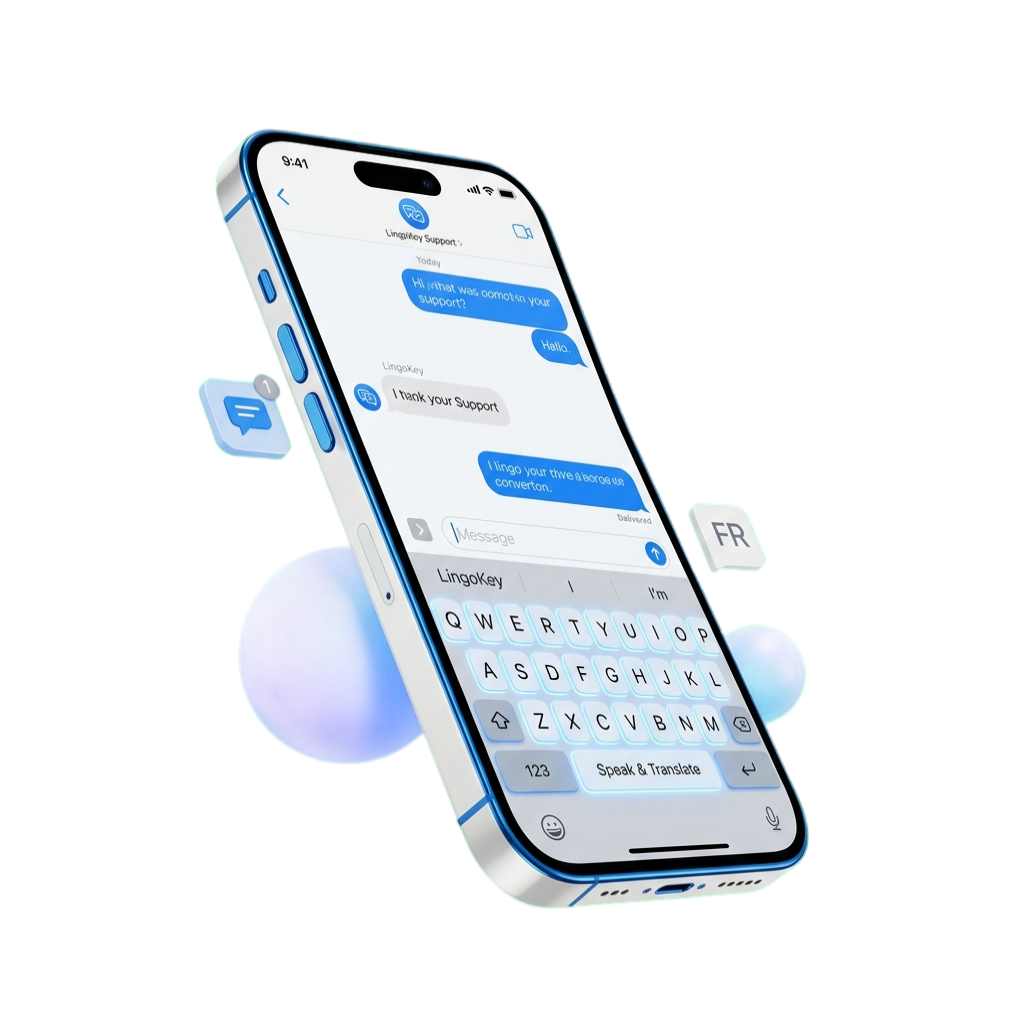
One keyboard. Fewer interruptions.
Copying a message, opening a translator, pasting the result, and returning to the conversation breaks your train of thought. LingoKey keeps that flow in one place: type your message, choose how you want it translated, and insert the result from the keyboard.
In one sentence: LingoKey is a third-party iPhone and iPad keyboard that translates text only when you tap the translation action.
Fast when the conversation is moving
Instant mode is designed for quick everyday messages. Professional mode focuses on a more polished, natural result when wording matters.
Made for the apps you already use
Use LingoKey in compatible text fields across messaging, email, social media, and the browser. Learn more about translating in any app.
Clear controls, intentional translation
You choose the source language, target language, translation mode, and writing style. Translation starts only after you ask for it.
Three ways to handle multilingual text
Translate the message you are writing
Write a draft in a compatible text field, confirm the direction shown above the keys, and tap translate. LingoKey replaces the available draft with the translated result so you can review it in the conversation before sending.
Undo an immediate replacement
If the translation was just inserted and the surrounding text has not changed, the undo action can restore the original draft. When the document context has changed, LingoKey avoids replacing text it can no longer identify safely.
Translate text you received
Copy incoming text and open the clipboard translation panel from the keyboard. This is an intentional clipboard action: it is separate from ordinary typing and lets you translate text that is not directly editable.
From your language to theirs
LingoKey includes dedicated keyboard input for Simplified Chinese, English regional variants, Spanish for Spain and Latin America, French for France and Canada, and German for Germany. The target-language catalog contains more than 100 languages and regional variants. See how source and target language support differ.
Match the tone, not only the words
The same translation can sound different in a family chat, a work email, or a public post. Choose Natural, Casual, Formal, Business, or Social style before translating. For speed, use Instant mode; for wording that deserves more attention, use Professional mode.
Privacy should be understandable
An iOS translation keyboard needs Full Access to contact its translation service. LingoKey uses that connection only when you request a translation, account check, or related service action. Read exactly what Full Access means.
LingoKey does not need access to your contacts, photos, location, camera, or microphone for keyboard translation. Translation does require an internet connection, and you should avoid sending secrets or other highly sensitive text through any cloud translation service.
Start in three steps
- Download LingoKey from the App Store.
- Add LingoKey under Settings → General → Keyboard → Keyboards and allow Full Access.
- Open a text field, switch keyboards, type, and tap translate.
Follow the illustrated setup guide if this is your first third-party keyboard.
LingoKey works in compatible text fields. iOS can return to the system keyboard for passwords and other secure inputs, and individual apps can disable third-party keyboards. Those restrictions come from iOS or the host app rather than a failed LingoKey installation.